
RSS and Atom
You need a connected interface and a publication's RSS or Atom feed URL.
Choose a publication's RSS or Atom feed URL, not its normal homepage.
Prepare the Extension:
inkcre/rssversion0.2.1for Core Host SDK0.3.x. Follow the Registry-to-Web installation steps for your online Core Peer, then use Enable in that Peer's row. No CLI or browser Extension is needed for this collector.Open Sources and the create-source form. Set Nickname to
My first feed.Choose Type
extensions.rss.rss.Source, orextensions.rss.atom.Sourcefor Atom.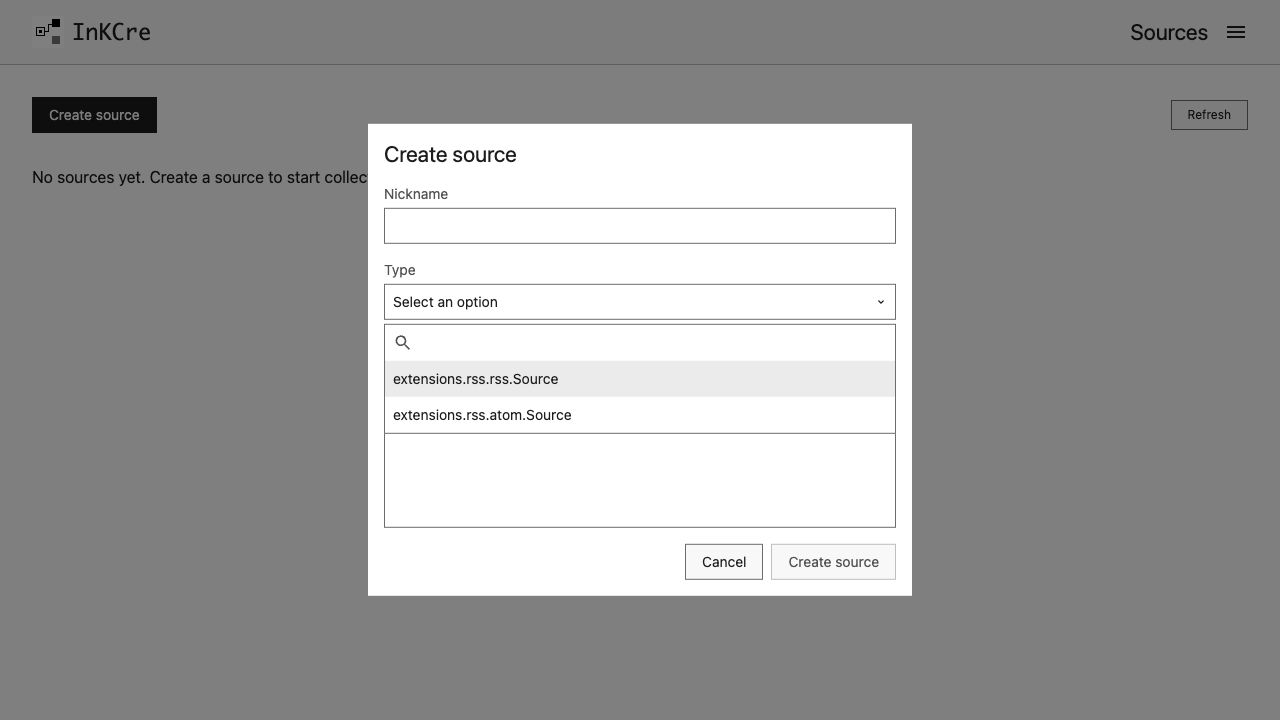
Search by type name, then select the matching feed format.
In the Form tab, enter the feed URL. Turn Fetch full text off and leave Download enclosures off for the first run.
Save/create the Source, then open it from the list. Run a Collection and inspect its Job before indexing and searching.
These options avoid extra article fetches and attachment downloads. A feed exposes only what its publisher currently provides; a successful Job is not an import of the full archive. After finding a known item, schedule collection.
Before you start, connect the CLI to your instance.
Choose a publication you already read and copy its RSS or Atom feed URL. Its normal homepage URL is not usually a feed URL. Look for an RSS/Subscribe link on the publication.
Enable the collector
Install the RSS Extension on Core, then enable it:
inkcre-cli extension select inkcre/rss --distribution python --version 0.2.1
# If selection reports a restart, wait for connection check to succeed before enabling.
inkcre-cli extension enable inkcre/rss
inkcre-cli source types
Version 0.2.1 supports Core Host SDK 0.3.x. For a different Host version, check the RSS release listing for a published release with a compatible python.host_sdk_version. Do not guess a version or use latest. If already installed, inspect inkcre-cli extension status inkcre/rss before changing it.
The type list should contain extensions.rss.rss.Source and extensions.rss.atom.Source. In the Web app, use Enable in Core's row to run the collector, not This browser.
Add and run the source
Create
feed.jsonin your local working folder:json{ "nickname": "My first feed", "config": { "feed_url": "https://YOUR-PUBLICATION/FEED", "fetch_full_text": false, "download_enclosures": false } }Replace the URL. These first-run settings collect feed content without extra article fetches or attachment downloads.
Create the Source, choosing the matching feed format:
shinkcre-cli source create --type extensions.rss.rss.Source --input feed.jsonFor Atom, use
extensions.rss.atom.Source. Record the returned Sourceid.Run a Collection using that Source ID. The guide shows the collection command, how to wait for its separate Job ID, and what to inspect if it fails.
Checkpoint: the collection Job finished. A feed exposes only what its publisher currently provides; success does not mean its entire historical archive was imported.
Next: Find what you saved, then schedule collection.